
Touch Calibration quick answer (30 seconds)
Touch Calibration in PCB manufacturing and assembly ensures that capacitive or resistive sensors accurately distinguish between a user's input and environmental noise. For engineers designing Human-Machine Interfaces (HMI) at APTPCB (APTPCB PCB Factory), successful calibration relies on hardware stability and firmware tuning.
- Signal-to-Noise Ratio (SNR): Maintain a minimum SNR of 5:1 for reliable touch detection; 10:1 is recommended for harsh environments.
- Parasitic Capacitance: Keep total sensor capacitance (Cp) below the controller's maximum limit (typically <30pF) to allow dynamic range for calibration.
- Baseline Tracking: Implement auto-calibration algorithms that adjust the baseline reference to account for temperature and humidity drift.
- Overlay Adhesion: Air gaps between the sensor PCB and the overlay material cause inconsistent sensitivity; use optical bonding or high-performance PSA (Pressure Sensitive Adhesive).
- Validation: Verify calibration across the full operating temperature range, not just at room temperature.
When Touch Calibration applies (and when it doesn’t)
Understanding when to invest engineering hours into Touch Calibration prevents wasted cycles on fixed-function hardware.
When Touch Calibration is critical:
- Custom Capacitive Touch PCB designs: Any board using copper pads as sensors requires tuning for the specific overlay thickness and material (glass, acrylic, plastic).
- Variable Environmental Conditions: Devices used outdoors or in industrial settings where temperature shifts affect the dielectric constant.
- High-Sensitivity Applications: Designs utilizing 3D Touch PCB or Force Touch PCB technology where pressure levels must be distinguished from light touches.
- Water-Tolerant Interfaces: Systems requiring water rejection (preventing false touches from droplets) need precise threshold calibration.
- Thick Overlays: Applications with vandal-proof glass (>3mm) require aggressive sensitivity tuning.
When Touch Calibration is unnecessary or limited:
- Standard Mechanical Switches: Physical domes or tactile buttons do not require software calibration.
- Pre-Calibrated Modules: Off-the-shelf touch screens with integrated controllers often come with fixed firmware that cannot be recalibrated by the integrator.
- Low-Resolution Resistive Sensors: Simple pressure pads used as binary switches often rely on fixed hardware comparators rather than dynamic calibration.
- Non-Touch Haptics: While Haptic Touch PCB feedback requires tuning, the actuation itself is an output, not a sensor input requiring calibration (unless combined with sensing).
Touch Calibration rules and specifications (key parameters and limits)
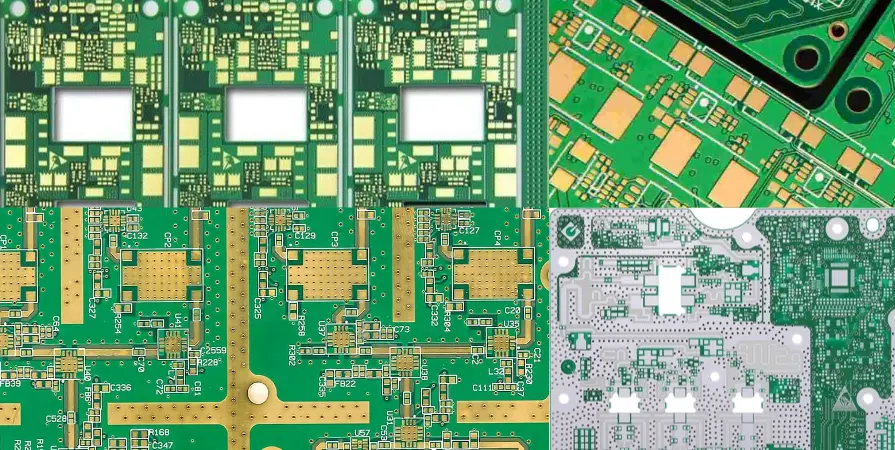
Proper calibration starts with a PCB layout that supports stable signal acquisition. Following these rules ensures the hardware is capable of being calibrated.
| Rule | Recommended Value/Range | Why it matters | How to verify | If ignored |
|---|---|---|---|---|
| Trace Parasitic Capacitance | < 10 pF per sensor trace | High parasitics reduce the dynamic range available for detecting touch deltas. | LCR Meter or Simulation (Si9000). | Sensor becomes insensitive; calibration fails to detect touch. |
| Series Resistor | 500Ω – 2kΩ (near pin) | Suppresses RF noise and ESD, stabilizing the signal for calibration. | BOM review and schematic check. | Erratic calibration values; susceptibility to EMI. |
| Ground Hatching | 10% – 20% fill (X-hatch) | Solid ground planes near sensors increase parasitic capacitance too much. | Gerber viewer inspection. | Reduced sensitivity; touch controller saturates. |
| Overlay Thickness | 1mm – 3mm (standard) | Thicker overlays reduce the electric field strength reaching the finger. | Caliper measurement of stackup. | Requires higher sensitivity settings, increasing noise susceptibility. |
| Sensor Pad Size | 8mm – 15mm diameter | Matches the average human finger contact area for optimal signal change. | CAD layout measurement. | "Dead spots" or accidental triggering of adjacent keys. |
| Separation Distance | > 2mm between pads | Prevents field coupling between adjacent sensors (crosstalk). | DRC (Design Rule Check) in CAD. | Ghost touches; calibrating one button triggers another. |
| Power Supply Ripple | < 50mV peak-to-peak | Noisy power rails inject noise directly into capacitive measurements. | Oscilloscope on VDD rail. | Unstable baseline; false triggers during operation. |
| Sampling Frequency | > 100 Hz | Ensures fast response time and sufficient data for averaging algorithms. | Firmware logic analyzer. | Laggy interface; missed quick taps. |
| Hysteresis | 10% – 15% of threshold | Prevents output "chatter" when the signal hovers near the trigger point. | Functional test with slow approach. | Flickering output; unstable switch state. |
| Temperature Drift | < 1% change / 10°C | Materials expand/contract, changing capacitance. | Thermal chamber testing. | False triggers in hot/cold environments. |
Touch Calibration implementation steps (process checkpoints)
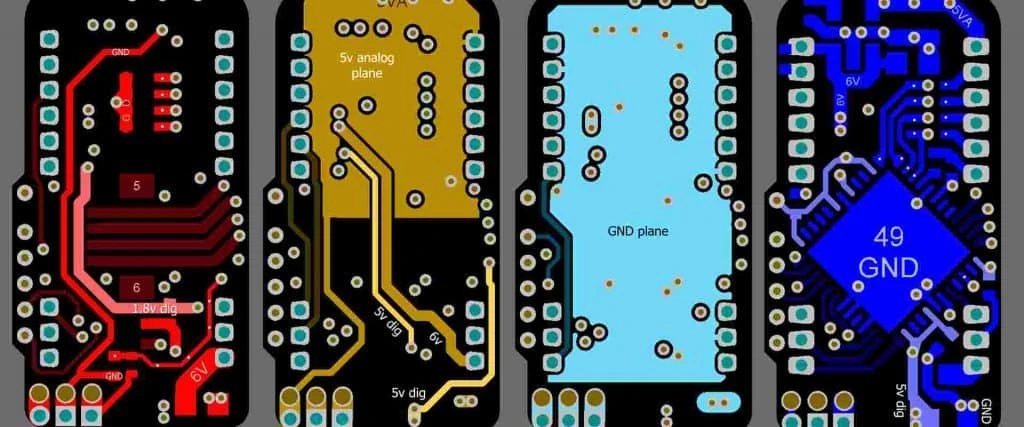
Implementing Touch Calibration involves a sequence of hardware validation and firmware adjustments. These steps bridge the gap between a bare PCB and a functional HMI.
Hardware Baseline Verification
- Action: Power up the bare PCB without the overlay. Measure the raw count values (capacitance) of each sensor.
- Parameter: Raw counts must be within the controller's linear range (e.g., 20%–80% of max count).
- Check: If counts are saturated (0 or max), check for shorts to ground or open traces.
Overlay Assembly and Bonding
- Action: Adhere the overlay material to the PCB using PSA or optical bonding. Ensure zero air bubbles.
- Parameter: Adhesive thickness typically 0.1mm – 0.2mm.
- Check: Visual inspection for bubbles; bubbles create variable dielectric constants that ruin calibration.
Signal-to-Noise Ratio (SNR) Measurement
- Action: Record signal delta (Touch Count - Baseline Count) and peak-to-peak noise when idle.
- Parameter: Target SNR > 5:1. Ideally > 10:1 for Infrared Touch PCB or capacitive hybrids.
- Check: If SNR is low, increase transmit voltage or enable hardware averaging filters.
Threshold Tuning
- Action: Set the "Touch Threshold" at 60%–80% of the average signal delta. Set "Release Threshold" slightly lower (hysteresis).
- Parameter: Threshold values (integer counts).
- Check: Verify reliable triggering with the smallest expected finger size (e.g., 7mm test finger).
Adjacent Key Suppression (AKS) Setup
- Action: Configure logic to ignore weaker signals from neighboring keys when a strong signal is detected.
- Parameter: AKS Group assignment in firmware.
- Check: Press two buttons simultaneously; only the intended (stronger) one should register.
Environmental Compensation Enable
- Action: Enable auto-calibration routines that slowly adjust the baseline to track temperature/humidity changes.
- Parameter: Drift compensation rate (e.g., 1 count per second).
- Check: Heat the unit with a heat gun; ensure no false touches occur as the baseline shifts.
Final Functional Test (FCT)
- Action: Perform a pass/fail test on the assembled unit using a robotic finger or standardized weight.
- Parameter: Actuation force/presence.
- Check: 100% detection rate across 10 cycles.
Touch Calibration troubleshooting (failure modes and fixes)
Even with robust designs, calibration issues arise during NPI (New Product Introduction). Use this logic flow to diagnose failures.
Symptom: False Triggers (Ghost Touches)
- Causes: Power supply noise, high sensitivity settings, moisture on overlay, floating inputs.
- Checks: Inspect VDD ripple; check for water residue; verify ground connectivity.
- Fix: Increase threshold values; enable software debounce; improve power decoupling capacitors.
- Prevention: Use a meshed ground pour (X-hatch) instead of solid copper to reduce parasitic capacitance.
Symptom: Lack of Sensitivity (Hard Press Required)
- Causes: Overlay too thick, air gaps in assembly, low dielectric constant material, trace parasitics too high.
- Checks: Measure overlay thickness; inspect for bubbles; check raw count values.
- Fix: Lower the touch threshold; reduce overlay thickness; switch to a controller with higher sensitivity.
- Prevention: Design with Flex PCB to minimize the distance between the sensor and the curved housing.
Symptom: Stuck "On" State
- Causes: Sensor calibrated while touched (negative baseline), solder flux residue (conductive), short circuit.
- Checks: Reboot device without touching; clean PCB surface; check for shorts.
- Fix: Implement "Stuck Key Timeout" in firmware to recalibrate if a key is held > 30 seconds.
- Prevention: Ensure strict cleaning processes to remove conductive flux residues.
Symptom: Erratic Behavior with Temperature Changes
- Causes: Thermal expansion of housing, changing dielectric properties of adhesive.
- Checks: Cycle temperature from 0°C to 50°C while monitoring raw counts.
- Fix: Tune the baseline tracking algorithm to be more aggressive (faster update rate).
- Prevention: Choose adhesives and overlay materials with stable thermal coefficients.
Symptom: Interference from LCD/LEDs
- Causes: High-frequency noise from display switching coupling into touch traces.
- Checks: Turn off display/backlight and re-test touch performance.
- Fix: Synchronize touch scanning with LCD blanking periods; add a shield layer between PCB and display.
- Prevention: Use Rigid-Flex PCB to physically separate the touch controller from high-noise display drivers.
How to choose Touch Calibration (design decisions and trade-offs)
Choosing the right calibration strategy depends on the hardware architecture and the user environment.
Manual vs. Automatic Calibration
- Automatic Calibration: Most modern touch controllers (e.g., for Capacitive Touch PCB) perform calibration on every power-up. This is ideal for consumer electronics where the environment is relatively stable.
- Manual/Factory Calibration: Required for Force Touch PCB or high-precision industrial panels. Here, specific reference values are written to non-volatile memory during the FCT Test phase. This compensates for manufacturing tolerances in overlay thickness.
Self-Capacitance vs. Mutual-Capacitance
- Self-Capacitance: Simpler to calibrate but suffers from "ghosting" in multi-touch applications. Best for single buttons or sliders.
- Mutual-Capacitance: Measures the interaction between transmit (Tx) and receive (Rx) electrodes. Requires more complex calibration matrices but supports true multi-touch and better water rejection.
Firmware-Based vs. ASIC-Based
- ASIC-Based: Dedicated touch chips handle calibration internally. They are easier to integrate but offer less flexibility if you encounter unique noise issues.
- Firmware-Based (MCU): Using a general-purpose MCU's ADC or touch peripheral allows infinite tuning of calibration logic but requires significant software engineering effort.
Touch Calibration FAQ (cost, lead time, common defects, acceptance criteria, Design for Manufacturability (DFM) files)
Q: How does Touch Calibration affect PCB assembly cost? A: It adds NRE (Non-Recurring Engineering) for test fixture development. If individual unit calibration is required during mass production, it increases the cycle time per unit, slightly raising the assembly cost. Standard auto-calibrating chips do not add production cost.
Q: What files does APTPCB need to quote a touch-sensitive PCB? A: We need Gerber files, the stackup (defining dielectric thickness), and the overlay material specifications. For Turnkey Assembly, include the specific touch controller part number and programming requirements.
Q: Can you calibrate for water tolerance? A: Yes. Water tolerance requires specific "guard channel" designs and fine-tuning thresholds. We recommend specifying "wet finger" requirements in your test plan so we can validate this during QC.
Q: What is the lead time for a custom Touch Calibration test fixture? A: Developing a functional test fixture (FCT) that includes touch verification typically takes 1–2 weeks concurrently with PCB fabrication.
Q: How do I define acceptance criteria for touch sensitivity? A: Define the "activation force" (even for capacitive, this implies contact area) or "SNR margin." For example: "Button must trigger with a 6mm diameter metal slug, but must NOT trigger with a 4mm slug."
Q: Does the choice of PCB material affect calibration? A: Yes. FR4 is standard, but Flex PCB or Rigid-Flex allows sensors to conform to curved surfaces. The dielectric constant of the material between the sensor and the finger is critical. Consistent material properties from vendors like Isola ensure consistent calibration.
Q: Why does my prototype work but production units fail calibration? A: This is often due to variations in overlay adhesive thickness or PCB mask thickness. Ensure your DFM Guidelines specify tight tolerances for layers affecting capacitance.
Q: Can APTPCB assist with tuning the firmware parameters? A: APTPCB focuses on manufacturing and hardware validation. While we ensure the hardware meets specs (impedance, clean assembly), firmware tuning is typically done by the client's design team. However, we can load your firmware and run your validation scripts during production.
Q: What is the difference between calibrating Capacitive Touch vs. Infrared Touch? A: Capacitive touch calibrates electrical charge thresholds. Infrared Touch PCB systems calibrate the alignment of light emitters and receivers; they are more mechanical in nature and less sensitive to overlay material properties.
Q: How do I prevent "negative" calibration drift? A: Negative drift occurs if the device initializes while a finger is on the sensor. The system assumes the finger is the "baseline." To fix this, implement a "re-calibration" logic if the signal remains high for an extended period (e.g., > 10 seconds).
Resources for Touch Calibration (related pages and tools)
- Flex PCB Capabilities: Essential for touch sensors in wearables or curved housings.
- DFM Guidelines: Best practices for layout to ensure manufacturability and signal integrity.
- FCT (Functional Circuit Testing): The production stage where calibration is verified.
- Rigid-Flex PCB: Ideal for isolating sensitive touch sensors from noisy mainboards.
Touch Calibration glossary (key terms)
| Term | Definition |
|---|---|
| Baseline | The raw capacitance value of a sensor when no touch is present. Calibration sets this reference point. |
| Threshold | The value above the baseline that signifies a valid touch event. |
| Hysteresis | The difference between the "Touch" threshold and the "Release" threshold, preventing signal chatter. |
| SNR (Signal-to-Noise Ratio) | The ratio of the touch signal strength to the background noise floor. Higher is better. |
| Parasitic Capacitance (Cp) | Unwanted capacitance inherent in the PCB traces and pads that reduces sensitivity. |
| Debounce | A time delay used to ignore brief, spurious signal spikes before registering a valid touch. |
| Guard Channel | A dedicated sensor trace used to detect water or large conductive objects to suppress false touches. |
| Dielectric Constant (Dk) | A measure of a material's ability to store electrical energy; affects how much the finger influences the sensor. |
| Overlay | The non-conductive material (glass, plastic) placed on top of the PCB sensor. |
| Counts | The digital integer value output by the touch controller representing the measured capacitance. |
Request a quote for Touch Calibration (Design for Manufacturability (DFM) review + pricing)
Ensure your touch interface performs flawlessly in the field by partnering with a manufacturer who understands the nuances of sensor PCBs. APTPCB provides comprehensive DFM reviews to catch layout issues that could kill your calibration dynamic range before you build.
For a precise quote, please provide:
- Gerber Files: Including all copper layers and solder mask openings.
- Stackup Details: Specifically the thickness of the overlay and adhesive.
- Test Requirements: Define if you need functional testing (FCT) or firmware flashing.
- Volume: Prototype (NPI) or Mass Production quantities.
Conclusion (next steps)
Touch Calibration is the bridge between a static PCB and a responsive user experience. By controlling parasitic capacitance during layout, selecting the right overlay materials, and implementing robust firmware thresholds, engineers can eliminate ghost touches and ensure long-term reliability. Whether you are designing a Capacitive Touch PCB or a complex Force Touch PCB, success lies in the details of the stackup and the rigor of the testing process.